
Secrets provide a secure way to store sensitive information, such as access tokens for external APIs. You can manage your secrets directly from the Settings tab within the Functions dashboard.
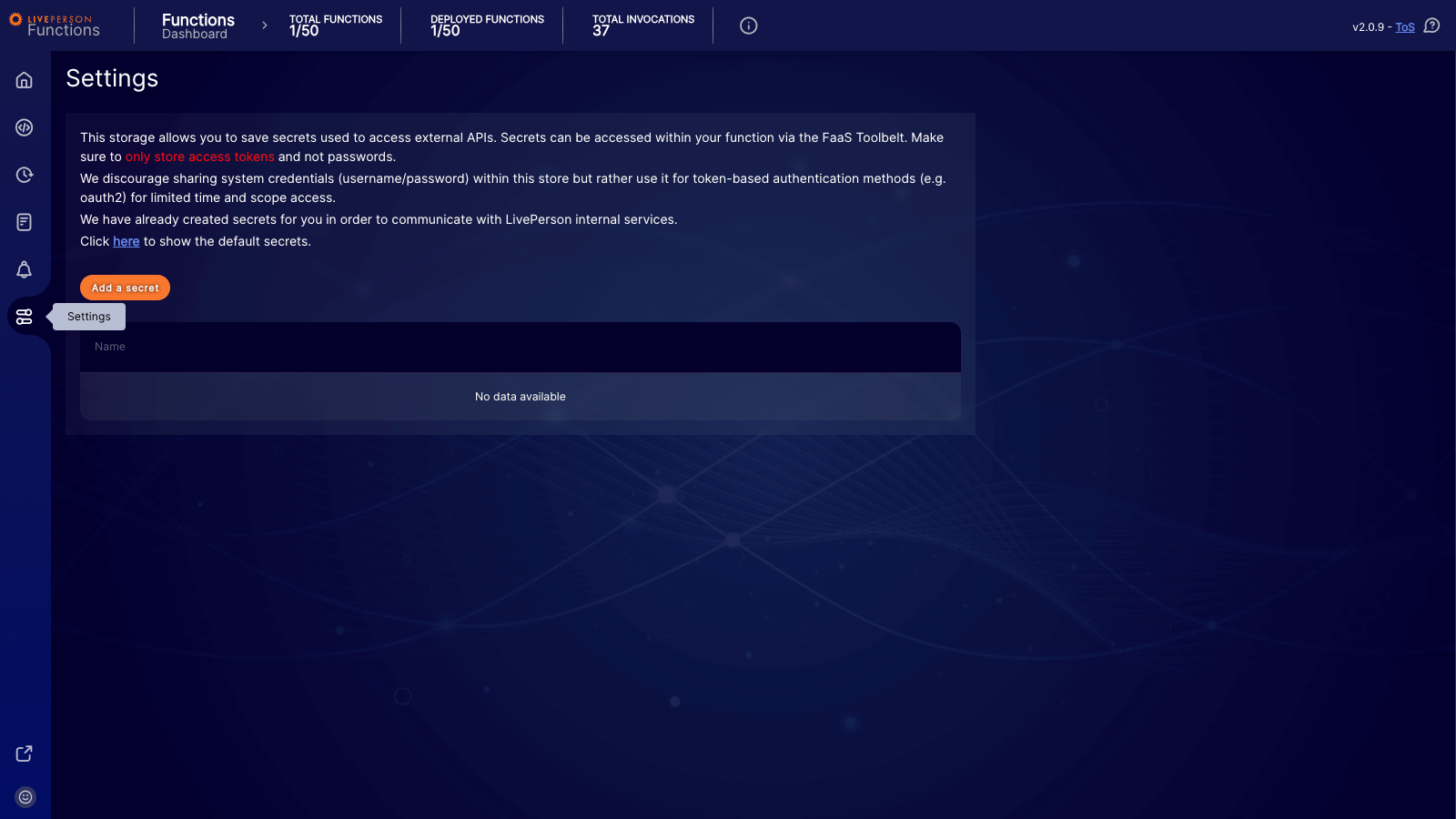
Creating a new secret
To add a secure value, click Add a secret. You will need to define a unique key and select the desired formatting for your value.
- Plaintext: If you select this option, the secret is treated as a simple string at runtime.
- JSON: If you select this option, the system parses the value as a JSON object, making it available as an object at runtime.
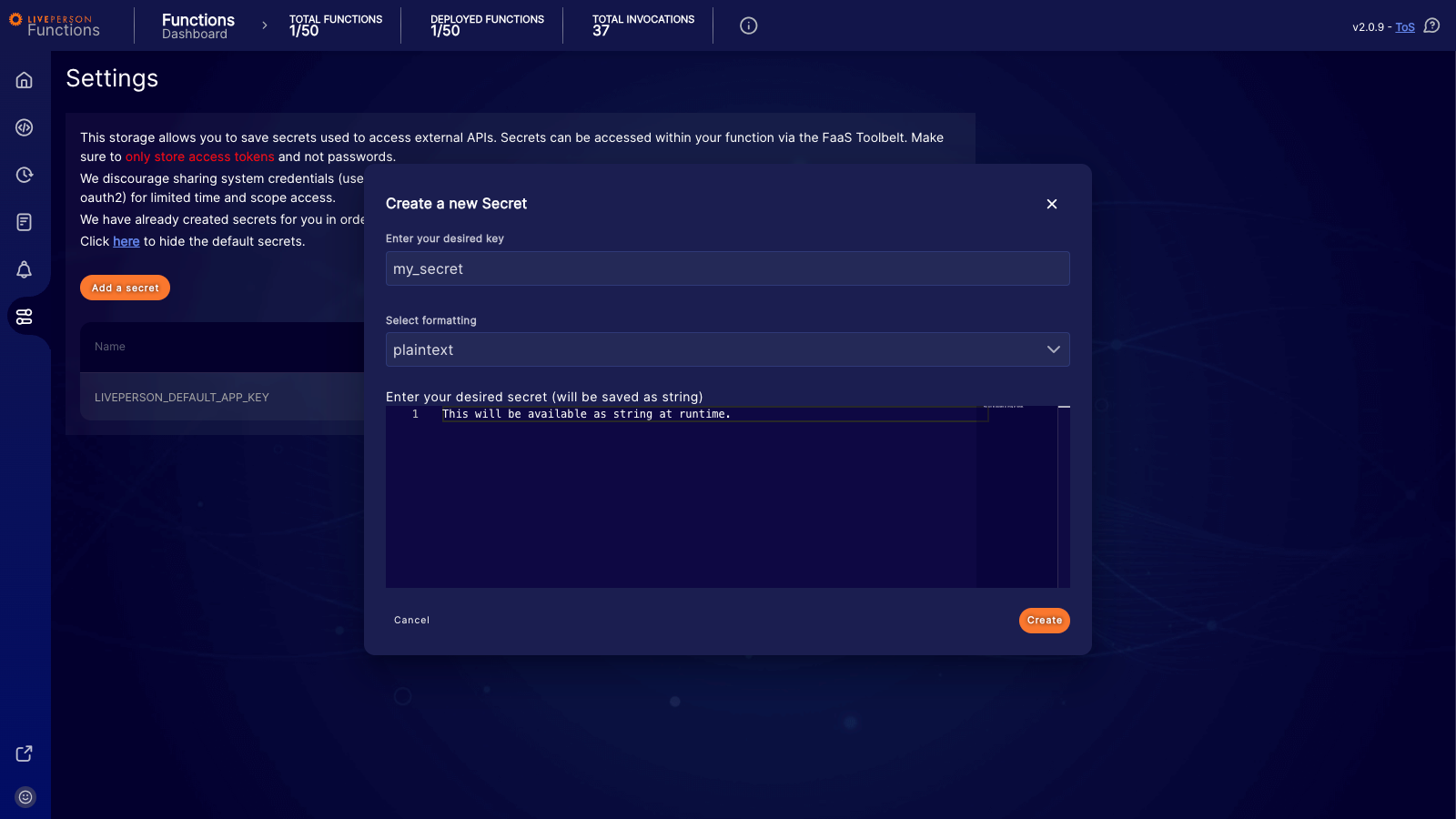
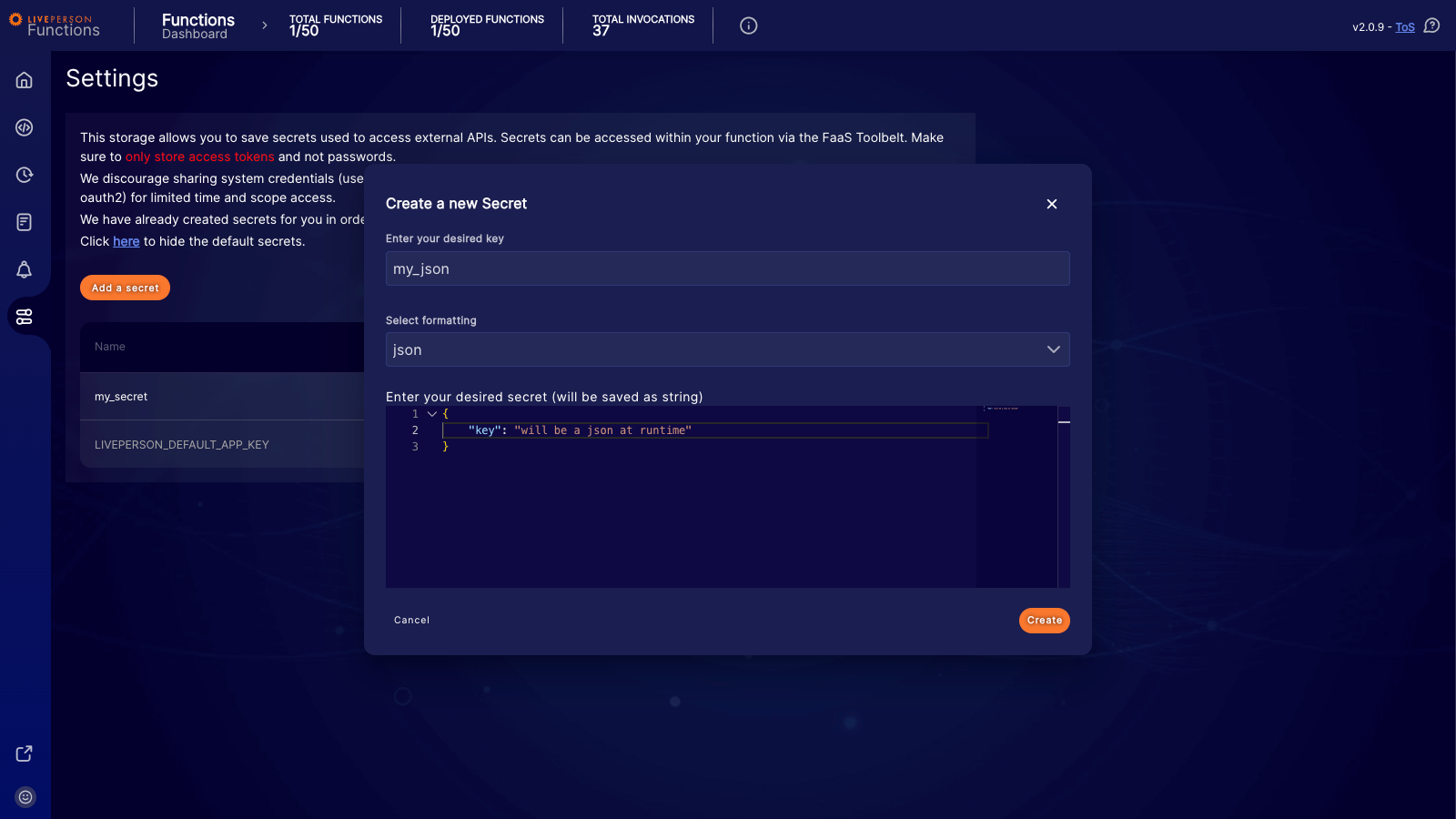
For security reasons, the actual value of the secret is only visible during creation. Once you save the secret, you will only see the name (key) in the list.
Using secrets in your code
You can access these secrets within your function using the Secret Client provided by the FaaS Toolbelt. For implementation details, please refer to the Toolbelt documentation.
Retrieving secrets is slower than retrieving environment variables. To optimize performance, avoid using secrets for non-sensitive configuration data that you can safely store in environment variables.
Automatic Caching and Data Consistency
- To improve performance, the
SecretClientautomatically caches secrets in-memory. By default, secrets are cached for 5 minutes. - It is crucial to understand that this cache is local to each running instance of your function. In high-load scenarios, the platform's autoscaler may create multiple instances of your function. These instances do not share a cache.
- If one instance updates a secret, other instances will continue to use their old, cached value until their local cache expires. This can lead to data inconsistency across different invocations of your function.
-
If your use case requires strict data consistency (i.e., you need to ensure that every invocation of your function immediately receives the most up-to-date secret value), you must bypass the cache by using the
{ useCache: false }option in yourreadSecretcall.
System secrets
We have created default secrets to facilitate communication with internal services. You can view these by clicking the link in the description text located above your secret list.
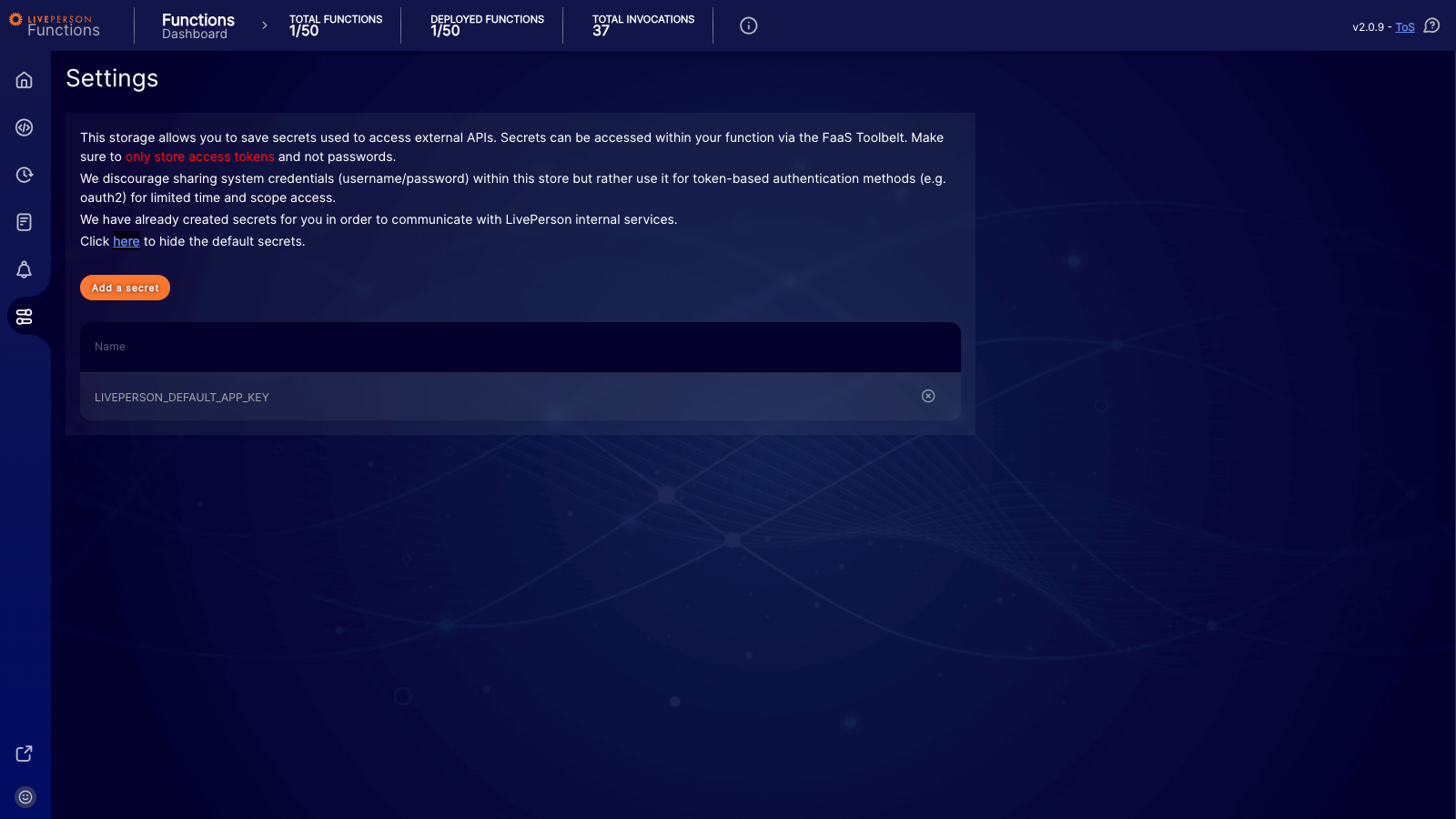
While you can technically leverage system secrets within your function, we extremely discourage doing so. Permissions and scopes for these system credentials may change without notice — potentially breaking your function.
Deleting a secret
To remove a secret, click the delete button next to the entry in the list.
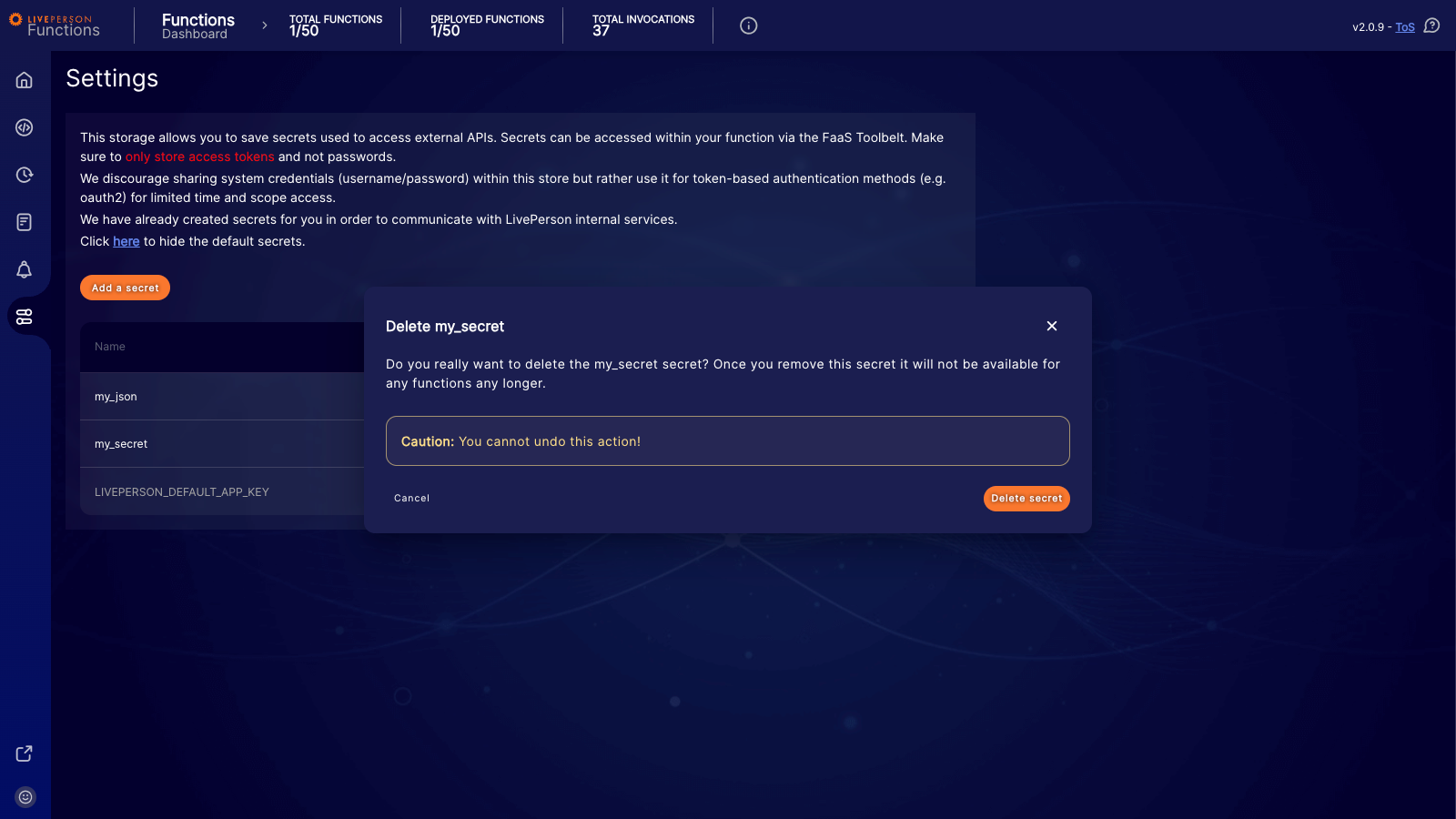
You cannot undo this action. Once you delete a secret, it is permanently removed. If any active functions currently rely on this secret, they will fail immediately upon the next invocation.